
Overview
Many privacy laws (such as the California CCPA/CPRA) give website visitors the right to ask a website not to sell or share their personal information with third parties for advertising or marketing.
CookieAdmin Pro's "Do Not Sell or Share My Personal Information" feature provides a simple form on your website where a visitor can submit that request. The request is stored in your WordPress dashboard so you can review it, process it, and keep a record for compliance.
In Short:
Setup Do Not Sell or Share My Personal Information
Follow these steps the first time you turn the feature on. After this you
only need to come back when you want to change settings or review requests.
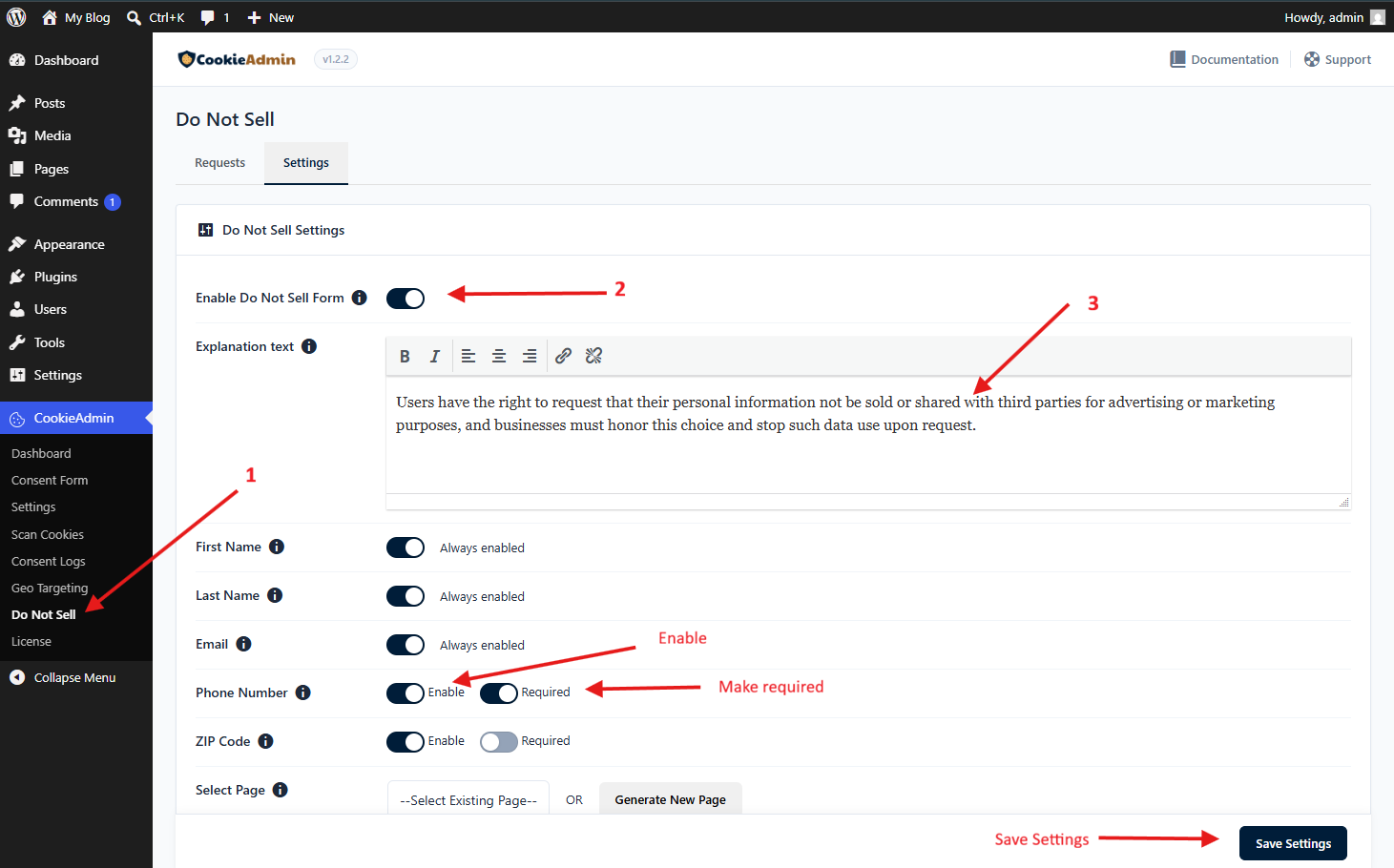
Step 1: Navigate to WordPress dashboard -> CookieAdmin -> Do Not Sell page and click on the settings tab.
Step 2: Find "Enable Do Not Sell Form" and flip the toggle ON.
Step 3: In "Explanation text", write a short paragraph that tells visitors what this form is for. A default message is already filled in - you may edit or replace it.
Step 4: The required fields (First Name, Last Name, Email) are always on. Optionally turn Phone Number and/or ZIP Code ON. For each one you can also mark it Required if you need that information to process a request.
Step 5: Click "Save Settings" at the bottom. An example image of settings is shown below -
Choose a page to show the form
Option A - Use a page you already have:
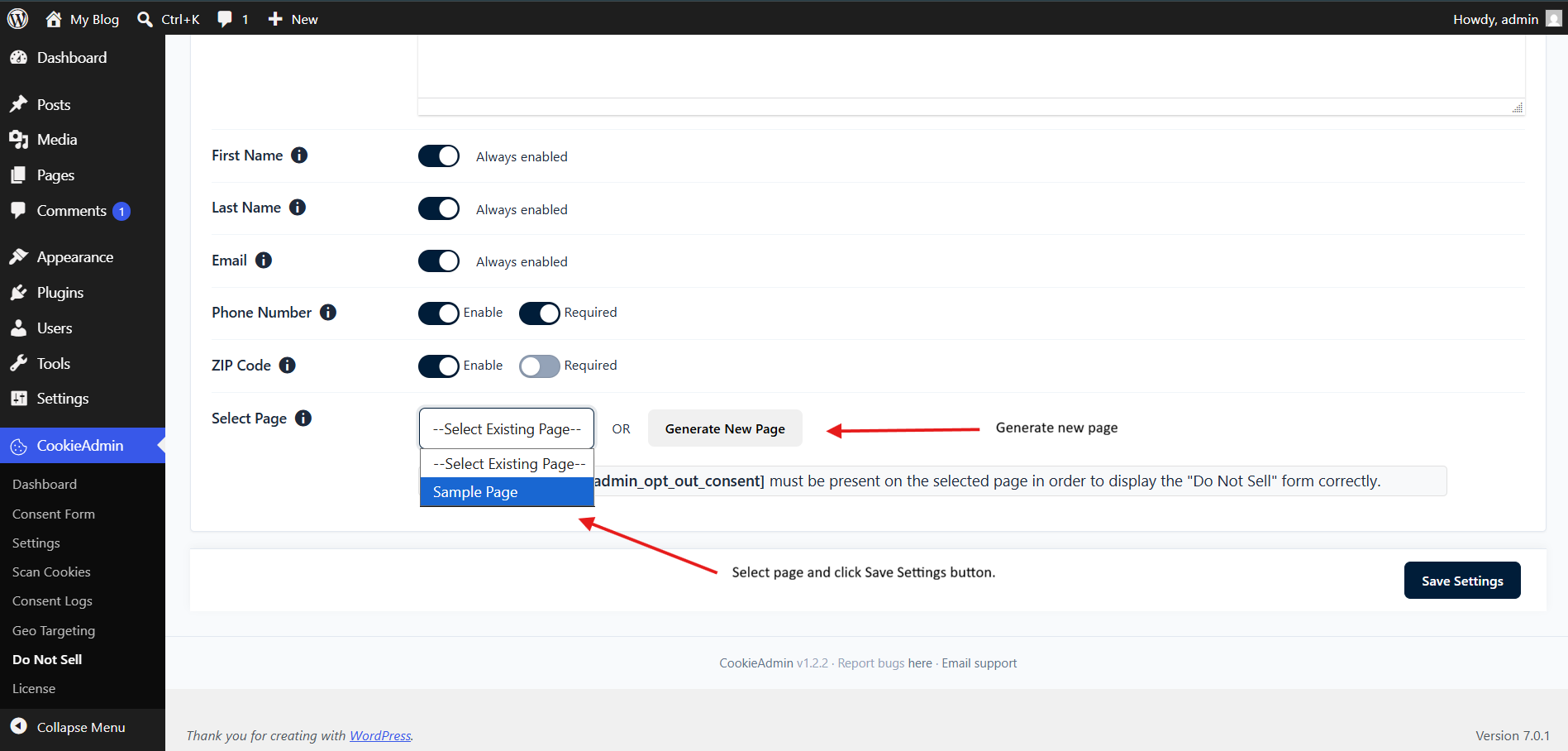
Note: The shortcode [cookieadmin_opt_out_consent] must be on the selected page or the form will not appear. When you change the selected page, the plugin automatically removes the shortcode from the previous page.
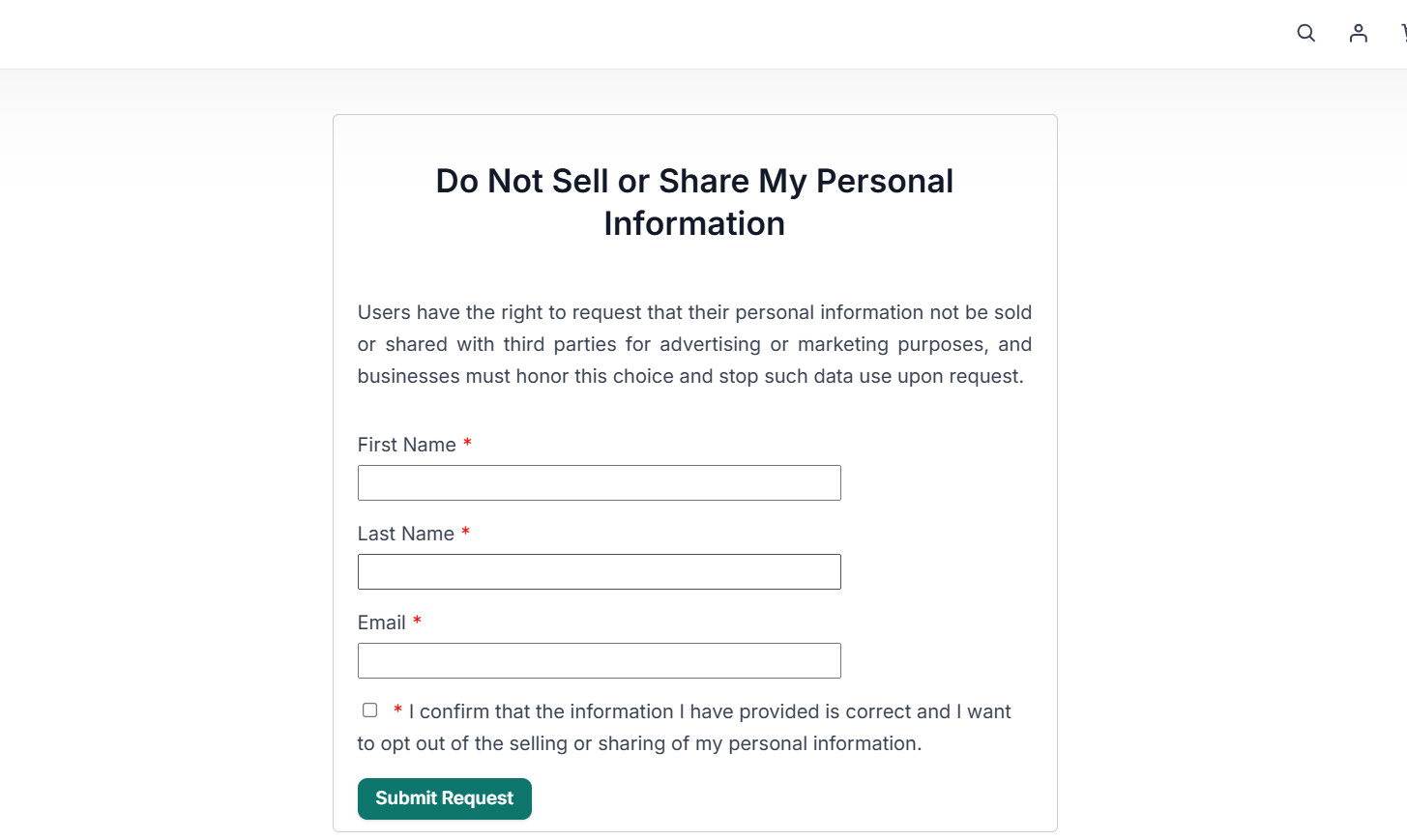
Option B - Let the plugin create the page (recommended):
Manage Requests
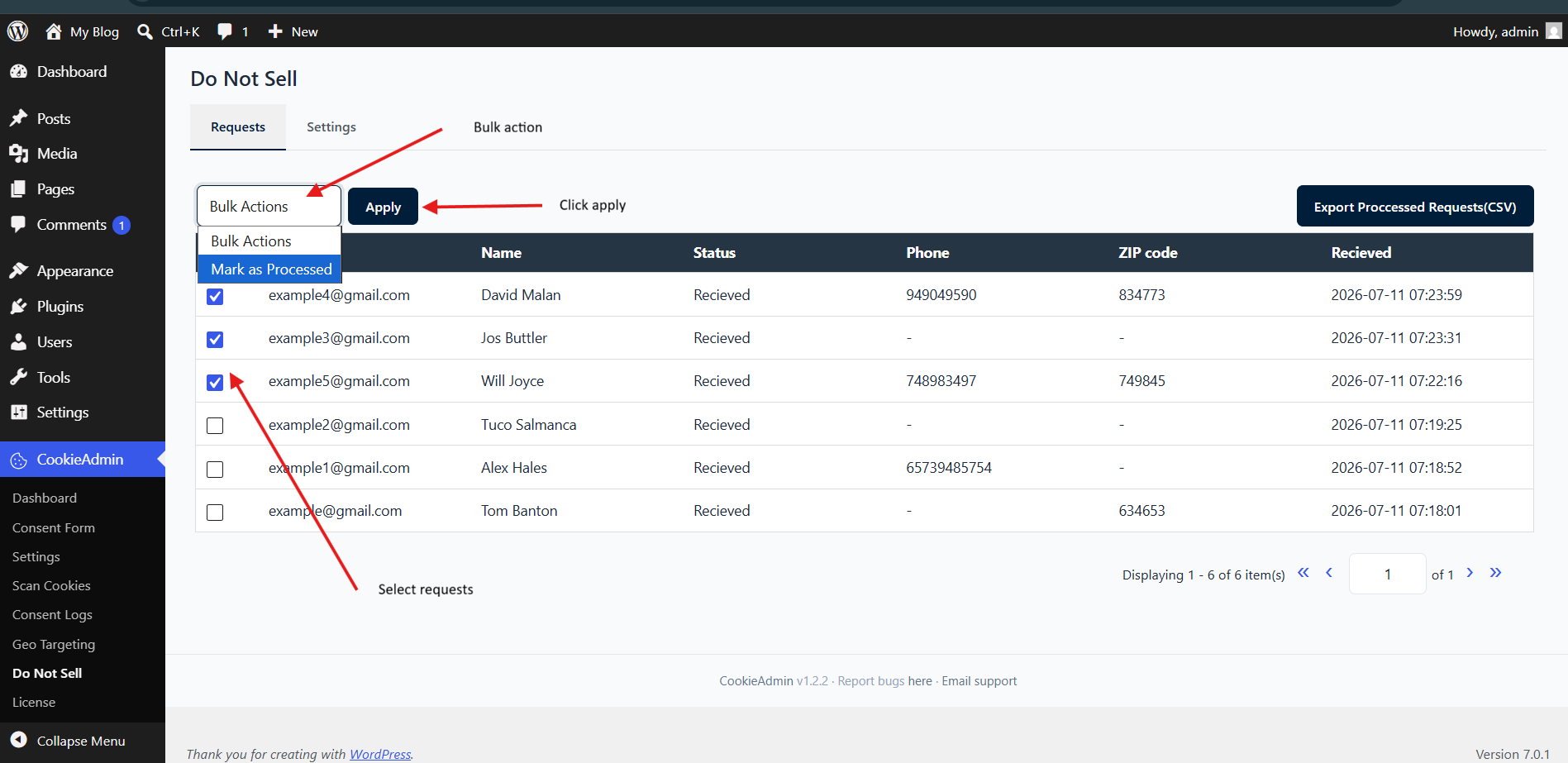
Navigate to CookieAdmin -> Do Not Sell -> Requests tab.
The table shows one row per submission with: Email, Name, Status, Phone, ZIP code, and the date Received. It is sorted newest first, 20 per page.
Mark a request as processed
When you have honored a request on your end (e.g. removed the visitor from your marketing / advertising lists):
Export processed requests to CSV