
Overview
Clarity's Consent Mode allows you to adjust cookie access based on the user's current consent status. With Consent Mode enabled, Clarity only set cookies after receiving valid consent from the user. To ensure Clarity does not set cookies prematurely, you can enable Consent Mode, which allows cookies to be set only after valid user consent is received.
Enable Clarity Consent Mode
Step 1 : Navigate WordPress Dashboard -> CookieAdmin -> Settings .
Step 2 : Enable the Clarity Consent Mode v2 toggle and click on the Save Settings button.
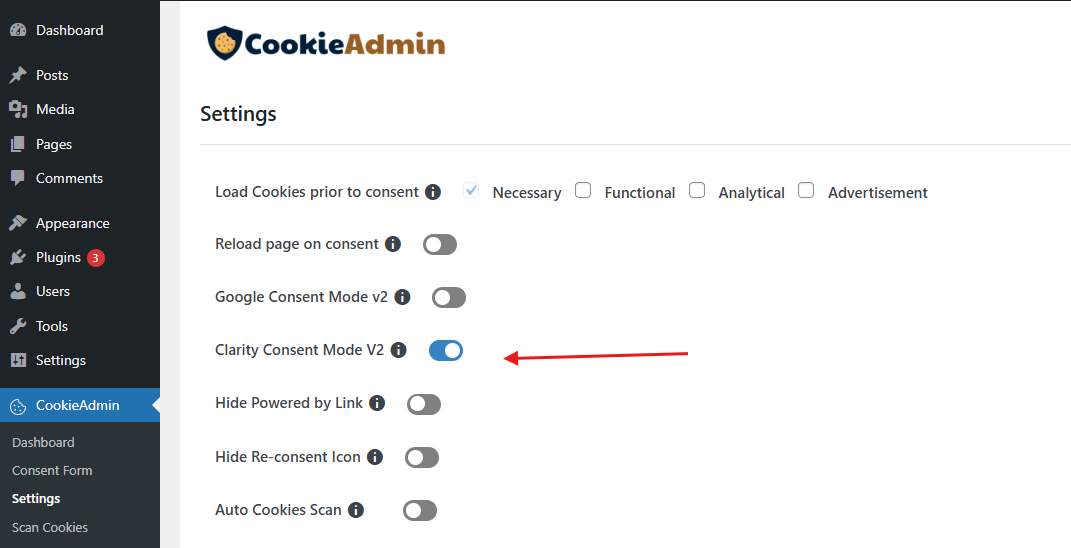
What is Clarity Consent Mode v2
The API call syntax is given below -
window.clarity('consentv2',{
   ad_Storage: "granted | denied",
   analytics_Storage: "granted | denied"
});
ad_Storage : Consent for storing data related to ads.
analytics_Storage : Consent for storing analytics-related data.
In Cookieadmin, the ad_Storage is managed by marketing cookies and analytics_Storage is managed by the analytics cookies.
Cookies set by Clarity
_clck : First party cookies, persists the Clarity User ID and preferences, unique to that site is attributed to the same user ID.
_clsk : First party cookies, Connects multiple page views by a user into a single Clarity session recording.
Verify the Clarity Consent Mode v2
Right click anywhere on your site and click inspect or.
Press Ctrl+Shift+I (windows) / Cmd+Option+I (mac).
Go to the console tab and paste the code given below to verify the consent status -.
clarity('metadata', (d, upgrade, consent) => {
       console.log('consentStatus:', consent);
  }, false, true, true);