
Overview
Geo Targeting detects each visitor's country (using a local country database) and applies the privacy-law rule you have defined for that country. This lets you show a GDPR compliant banner to European visitors and a US State Laws compliant banner to visitors from the United States, all from the same site, automatically.
If the feature is OFF, every visitor sees the default consent banner configured in CookieAdmin's general settings.
Enable Geo Targeting
Geo Targeting needs the local country database to detect a visitor's country. Download it before adding rules.
Follow the steps give to configure the Geo targeting settings ;-
Step 1: Navigate to WordPress Dashboard -> CookieAdmin -> Geo Targeting page.
Step 2: Under "Download Country Database":
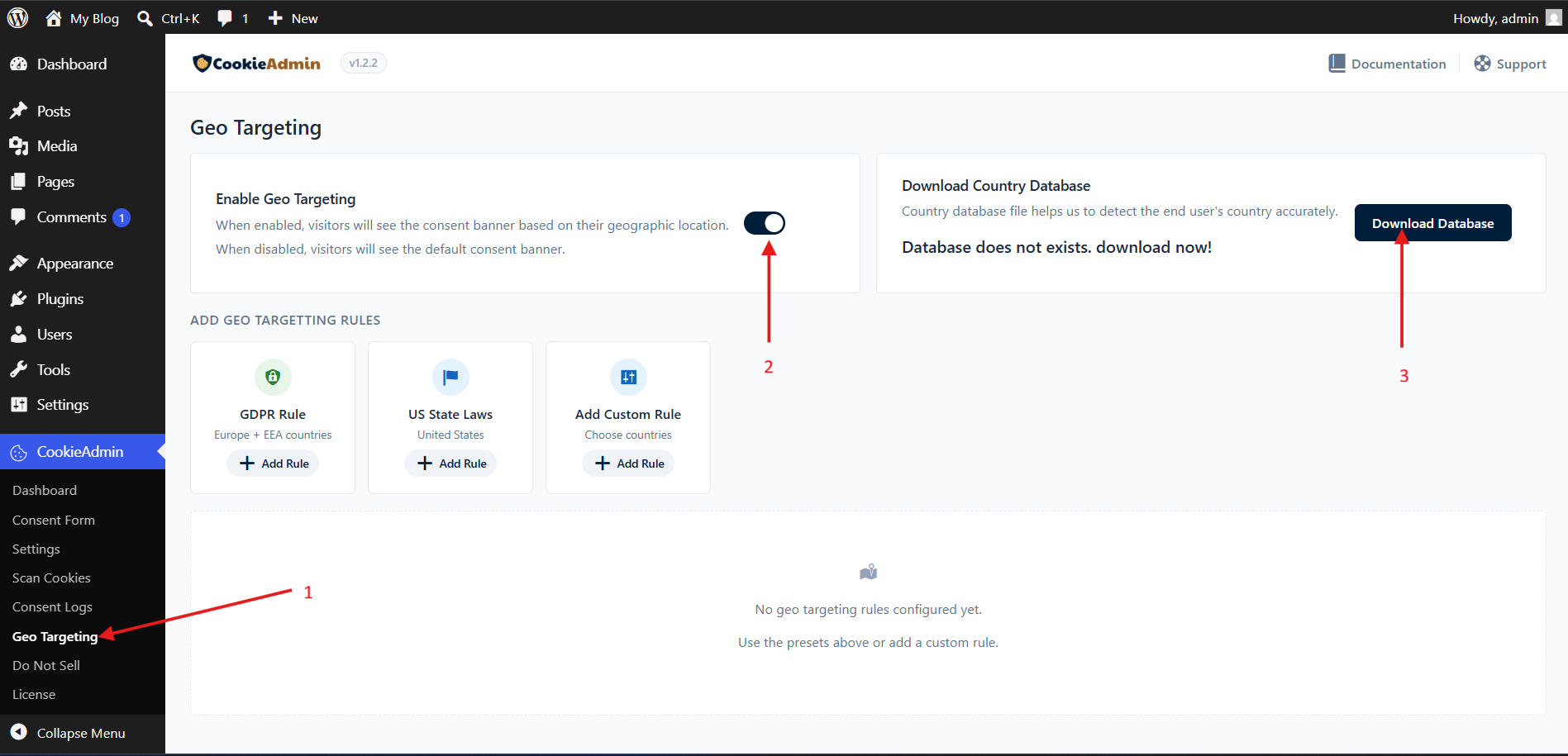
Step 3: Wait for the download to finish. The database is saved in wp-content/uploads/cookieadmin/ and is used locally to look up each visitor's country. No external lookup is performed per visitor.
Notes :-
1. A valid CookieAdmin Pro license is required to download the database.
2. The plugin also periodically checks for a newer database and shows a notice at the top of CookieAdmin pages when an update is available. Revisit this page and click "Update Database" to apply it.
Add Predefined Rules
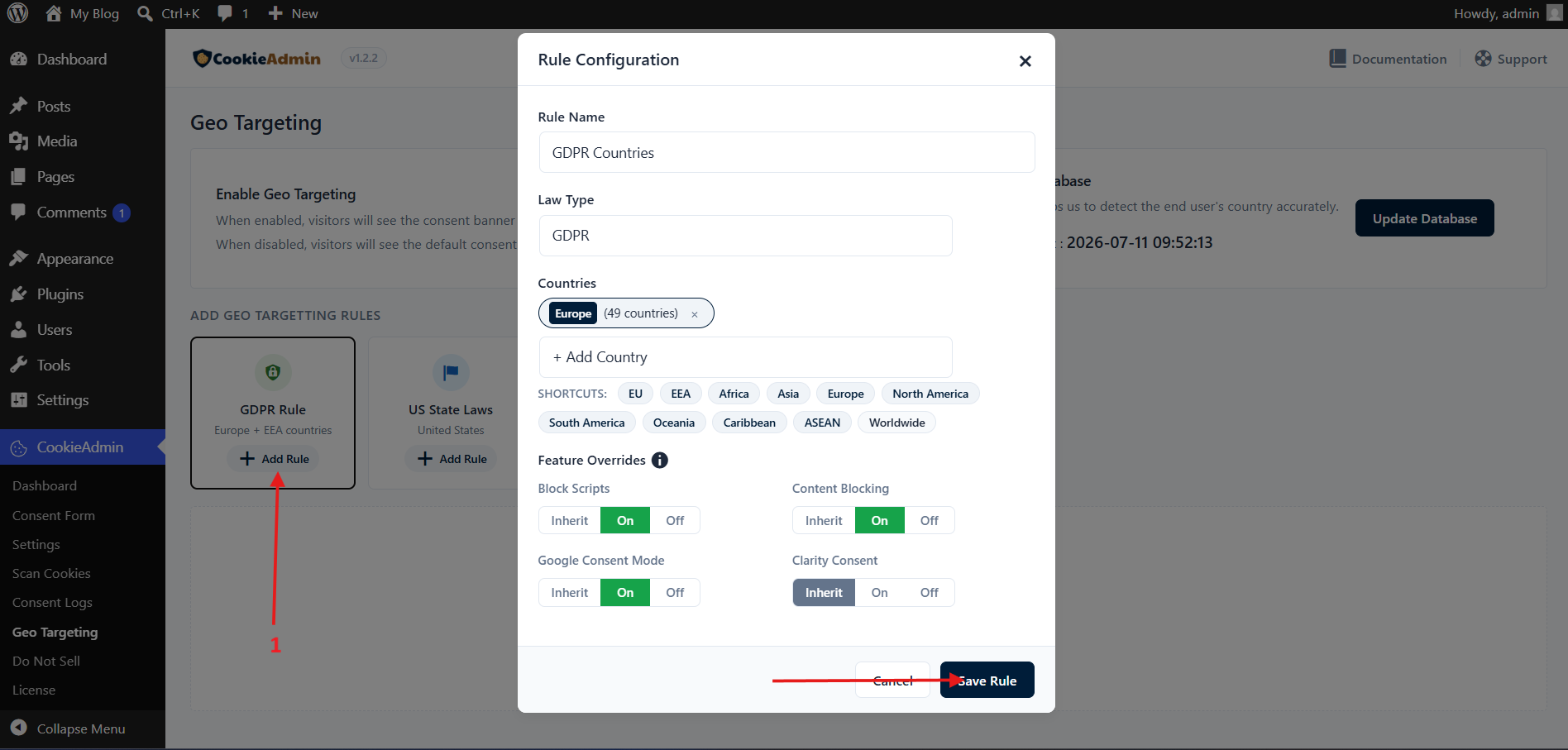
GDPR Rule : adds a rule named "GDPR Countries" that covers Europe and enables Block Scripts and Content Blocking, with Google Consent Mode turned On.
US State Laws : adds a rule named "US State Laws" covering the United States, with all feature overrides set to Inherit (uses your global settings).
Click a preset card to add it. The rule appears in the "Geo Targeting Rules" table immediately.
Add Custom Rules
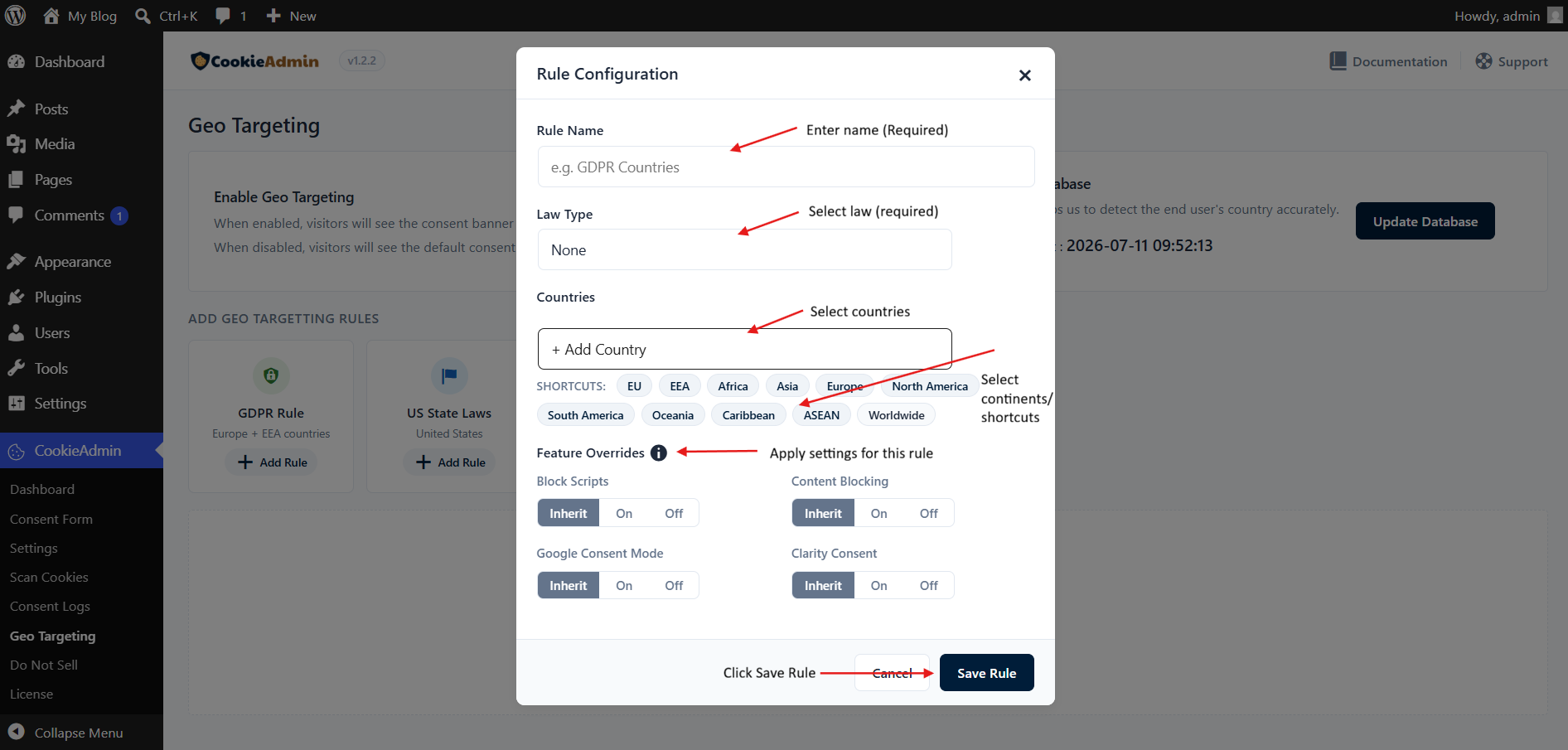
Step 1: Click on the "Add Custom Rule" button and a modal will open.
Step 1: Fill in all the details and click on the "Save Rule" button.
Below is the description of each form element :-
Step 3: Click "Save Rule". The rule is stored and shown in the rules table.
How visitors are matched to a rule
How does it matches the rule when a visitor loads your site :-
Note: If Geo targeting is off,the visitor's country cannot be detected, no rule matches, the visitor gets the default consent banner and your global feature settings.